A PDF editor that doesn't get in your way
Most people don't need a full desktop suite just to fix a date, drop in a signature, or paste a logo onto a document. They need something they can open in a browser tab, use for two minutes, and close. That's what the EkZapp PDF Editor is built for.
There's no install, no plugin, and no account wall between you and your file. Upload a PDF, add whatever text or image it's missing, and download the result — the same document you started with, just with the missing pieces filled in. Nothing about the rest of the file changes: fonts, layout, and formatting stay exactly as they were in the original.
It's built for the everyday edit, not the redesign — the kind of quick fix that would otherwise mean re-exporting a whole document from Word or Google Docs just to change one line.
How to edit a PDF online for free
No installs, no watermark, no account. Everything above runs right in your browser — here's exactly what each step does and why it works that way.
Upload your PDF
Drag a file into the upload box above, or click it to browse your computer. The moment the file loads, EkZapp renders every page directly in your browser using the same rendering engine that powers most PDF viewers — so what you see matches what will print. Your file is processed securely and never shared with anyone; nothing is stored longer than needed to complete your edit, and the working copy is deleted automatically once you're done.
Pick a tool from the toolbar
Use Text to click anywhere on the page and start typing — a text box appears exactly where you clicked, ready to type into immediately. Use Image to drop in a logo, photo, or scanned stamp; it lands near the middle of the visible page and you drag it into position from there. Every element you place, whether text or image, can be dragged to reposition and resized once it's on the page, so getting the exact spot right doesn't require starting over.
Format as you go
With the Text tool active, the formatting bar above the page lets you change font family, size, and color for whatever's currently selected. You can set these before you start typing a new box, or select an existing one afterward and adjust it — both work the same way, so there's no wrong order to do things in.
Apply changes and download
Once your edits look right, click Apply changes. EkZapp flattens every addition — text, images, and anything else you placed — directly into the PDF's page content and hands you a clean file to download. There's no watermark stamped across it and no login wall between you and the finished document; it's simply your original file with the new content baked in.
Built for the PDF you already have, not the one you wish you had
A lot of the PDFs people need to edit weren't made to be editable in the first place — a scanned form from a government office, a contract a client emailed over as a flattened export, a certificate template with no fillable fields. Going back to the original source file usually isn't an option, because there isn't one on hand.
That's the specific gap this tool covers: adding what's missing directly onto the page you already have, without needing the original design file, the right fonts installed locally, or design software at all. Students annotating lecture slides, freelancers correcting a client's contract before signing, small business owners branding an invoice template, and anyone filling in a form that has no digital fields — this tool is built around that exact kind of task.
Built for quick, everyday PDF edits
Files stay private
Your document is never shared with third parties, never used to train anything, and is removed automatically after your edit is complete.
No watermark, ever
Every export is clean — nothing added to your document, no branding stamped across your pages, no "trial version" banner to remove later.
No account needed
Skip the signup form and the email verification step. Upload, edit, and download — the whole flow takes under a minute from start to finish.
Real text editing
Add new text anywhere on the page with full control over font family, size, and color, and adjust any of it again later before you apply changes.
Drop in images
Place a logo, photo, or scanned stamp anywhere on the page, then drag its corner handle to resize it proportionally to fit.
Works on any device
Runs entirely in the browser on desktop, tablet, or phone — nothing to install and nothing that needs updating later.
Where people use the PDF editor
The tool gets reached for in a handful of recurring situations — here are the ones people run into most.
Filling out forms
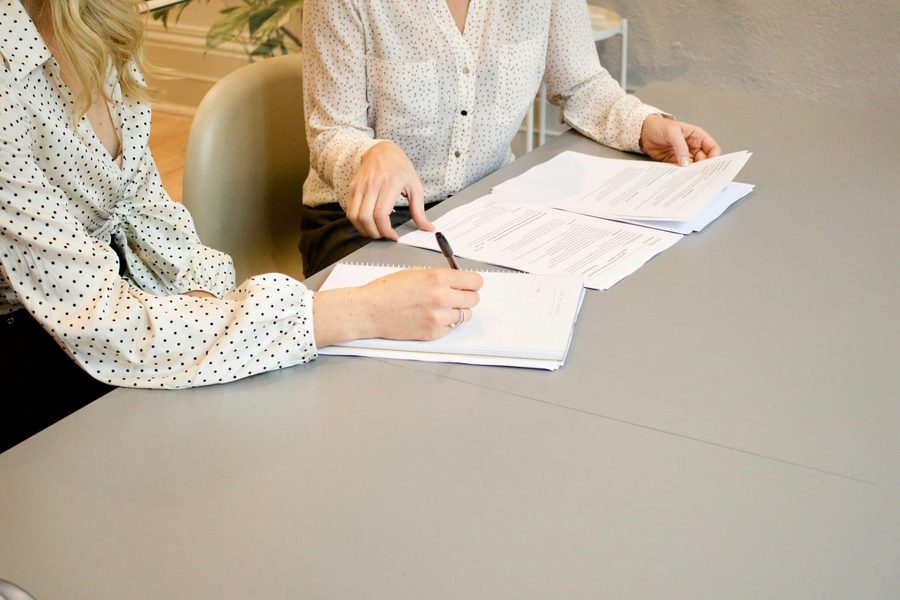
Add typed answers directly onto scanned application forms, agreements, or government PDFs that don't have fillable fields built in, so you're not left printing, writing by hand, and re-scanning.

Quick corrections
Fix a typo, update a date, or add a missing line before sending a contract or report to a client, without going back to whoever originally designed the document.
Annotating study material
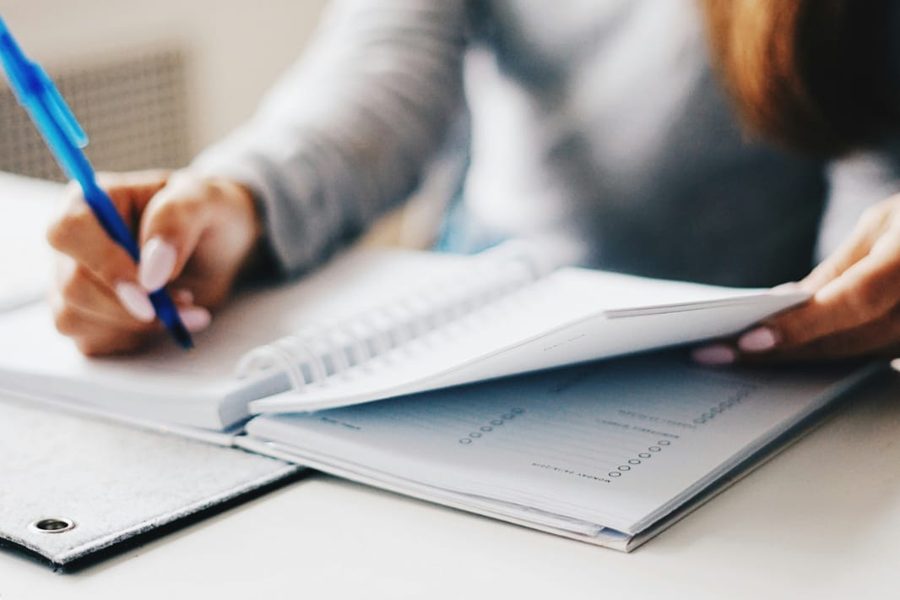
Drop in extra notes, worked examples, or reference images onto lecture slides and reading material that was exported as a PDF and has no editable source file.

Branding documents
Place a company logo, letterhead image, or watermark onto invoices, proposals, and reports before they go out, keeping a consistent look across every file you send.
Getting a cleaner result
Zoom in before placing small text
Use the Zoom + button in the toolbar to get a closer view of the exact spot you're editing — it makes lining text up with existing content on the page noticeably easier than working at the default size.
Match the existing font where it matters
For anything formal — contracts, certificates, official forms — picking a font close to what's already on the page keeps your addition from standing out as an obvious edit.
Use a transparent PNG for logos
A logo exported with a transparent background sits naturally on the page; a logo with a white background box will visibly cover whatever's underneath it.
Double-check before applying
Once you click Apply changes, the edits are flattened permanently into the file. Take a moment to review placement and spelling on every page first — it's the one step worth not rushing.
What this version doesn't do yet
Being upfront about scope saves you a wasted upload. With the Text tool active, clicking on text that's already in the PDF lets you edit it in place — the original is erased and your new text takes its exact spot, matched to the detected size and position. This only works on text-based PDFs; a scanned or image-only page has no underlying text to detect, so on those pages you can still add new text on top, just not edit what's baked into the scan.
Font matching is a best-effort guess, not a perfect read of the original file's embedded font — the size and position lock on accurately, but you may want to double check the font family looks right before applying, especially on documents using an unusual typeface.
If your document is a scanned image rather than a text-based PDF, adding new text on top still works fine — you're placing a new layer on the page, not modifying the scan itself. What won't work is selecting and changing text that's part of the scanned image, since there's no underlying text to select in the first place.
EkZapp PDF Editor vs. typical online editors
Most free online PDF editors hold something back for the paid tier — a watermark, a file size cap, a login requirement. Here's where EkZapp's free tier stands next to what's typical elsewhere.
| Feature | EkZapp | Most free tools |
|---|---|---|
| Account required | Not required | Often required |
| Watermark on export | None | Common on free tier |
| File size limit (free) | 50 MB | Often 10–25 MB |
| Add text with font/color control | Yes | Yes |
| Files auto-deleted after use | Yes | Varies by provider |
Comparison reflects EkZapp's current free-tier limits and general patterns among free online PDF editors as of 2026.
PDF Editor FAQ
Is the EkZapp PDF editor really free?
Yes. Uploading, editing, and downloading your PDF is free, with no watermark added to your file. Free-tier limits apply to file size and how many tasks you can run per hour.
Can I edit text that already exists in the PDF?
Yes — with the Text tool selected, click directly on any existing text and it becomes editable in place. The original is erased and your edit is drawn in the same spot at a matching size. This only works on text-based PDFs; scanned pages have no underlying text to detect.
Will my file be shared with anyone?
No. Your PDF is only used to generate your edited download and is not shared with third parties or used for any other purpose.
Does this work on mobile?
Yes, the editor is fully responsive and works in any modern mobile browser, though for detailed editing a larger screen is easier to work with.
What file types can I upload?
Currently only PDF files. If you need to add an image to a PDF, use the Image tool inside the editor rather than uploading the image directly.
Is there a limit on how many pages I can edit?
You can add text and images across every page of your document within the free tier's file size limit — there's no separate page cap for editing.
Can I undo a change after adding it?
Yes, use the Undo button in the top bar to remove the most recent element you placed, or click the delete icon that appears on a selected text box or image to remove it directly.
Do I lose quality when I download the edited PDF?
No. Applying changes only adds your new text and images to the page — it doesn't recompress or re-render the rest of the document, so the original content stays at its original quality.
Can I edit a password-protected PDF?
Not directly — you'll need to remove the password first using a PDF unlock tool, then upload the unlocked file here. This keeps the editor from ever needing to store or process your document's password.
Why does my text look different after I click Apply changes?
The formatting bar preview and the flattened output use the same font rendering, so text should look consistent. If a font you selected isn't available in the final render, the editor falls back to the closest built-in match — sticking to the default font options avoids this entirely.
One tab, one file, one fix
The goal with this editor isn't to replace a full design suite — it's to handle the small, specific edit that would otherwise mean tracking down the original source file, opening heavier software, or printing and re-scanning a page by hand. Upload the PDF you already have, add what's missing, and get back to whatever you were doing before the document needed fixing.
If a bigger job comes up along the way — merging a few PDFs into one, compressing a file before emailing it, converting a document to Word for a deeper edit — the related tools below cover the rest of the workflow, all under the same free, no-signup approach.