- Who runs into this problem most often
- How PDF compression actually reduces file size
- A quick pre-upload checklist
- Why exam forms demand such tiny PDF sizes
- Step-by-step: compress your PDF for free
- Common target sizes for popular exam forms
- Tips to get the smallest file size without losing quality
- What to do if one pass isn't enough
- Scanned PDFs vs. text-based PDFs
- Frequently asked questions
If you've ever tried uploading a PDF to an SSC, Railway, or Bank PO exam form and hit an error like "File size must be under 100KB," you're not alone. This guide covers exactly how to shrink your PDF to the required size in under a minute — free, no signup — along with the specific size targets different exam boards use, why compression works differently on scanned versus digitally-created documents, and what to do when a single compression pass isn't enough.
Who runs into this problem most often
| Who | Typical situation |
|---|---|
| SSC / Railway / Bank exam aspirants | Uploading scanned mark sheets, category certificates, and photos to a strict-limit application portal |
| First-time applicants | Not realising a phone camera scan (2-5 MB) needs to shrink by 95%+ to meet a 100 KB cap |
| Repeat applicants | Re-submitting the same documents across multiple exam boards, each with a different limit |
| Rural / mobile-first applicants | Filling the entire form and compressing files from a phone browser rather than a desktop |
Because these portals are shared infrastructure serving an entire recruitment cycle's worth of applicants at once, the size limit isn't negotiable no matter how important the document is — which is exactly why having a fast, reliable way to hit the target matters more here than for most everyday file-sharing tasks.
How PDF compression actually reduces file size
Two different techniques usually run together inside a PDF compressor, and knowing the difference helps set the right expectations:
A PDF that's mostly typed text with no images can shrink dramatically through lossless optimization alone, sometimes reaching under 100 KB from a much larger starting file without any visible change. A PDF that's essentially a photographed page, on the other hand, depends much more heavily on image re-compression, which is why scanned documents sometimes need the JPG-first workaround described below to hit an aggressive target.
A quick pre-upload checklist
Before submitting a compressed PDF to any exam or job portal, running through a short checklist catches most last-minute rejections:
- Confirm the file size in your file manager, not just by eye — a file that "looks small" can still be a few KB over a strict limit.
- Open the downloaded PDF and check every page loaded correctly — a compression step that partially fails can occasionally drop content, so a quick visual check before submitting is worth the extra minute.
- Re-read the exact wording of the size requirement — some notifications specify "up to 100 KB" (inclusive) while others say "less than 100 KB" (exclusive), and submitting exactly at the boundary can go either way depending on interpretation.
- Check the accepted file format — most portals want PDF specifically for documents and JPG for photos; submitting the wrong format type, even at the right size, causes a rejection unrelated to compression at all.
Why exam forms demand such tiny PDF sizes
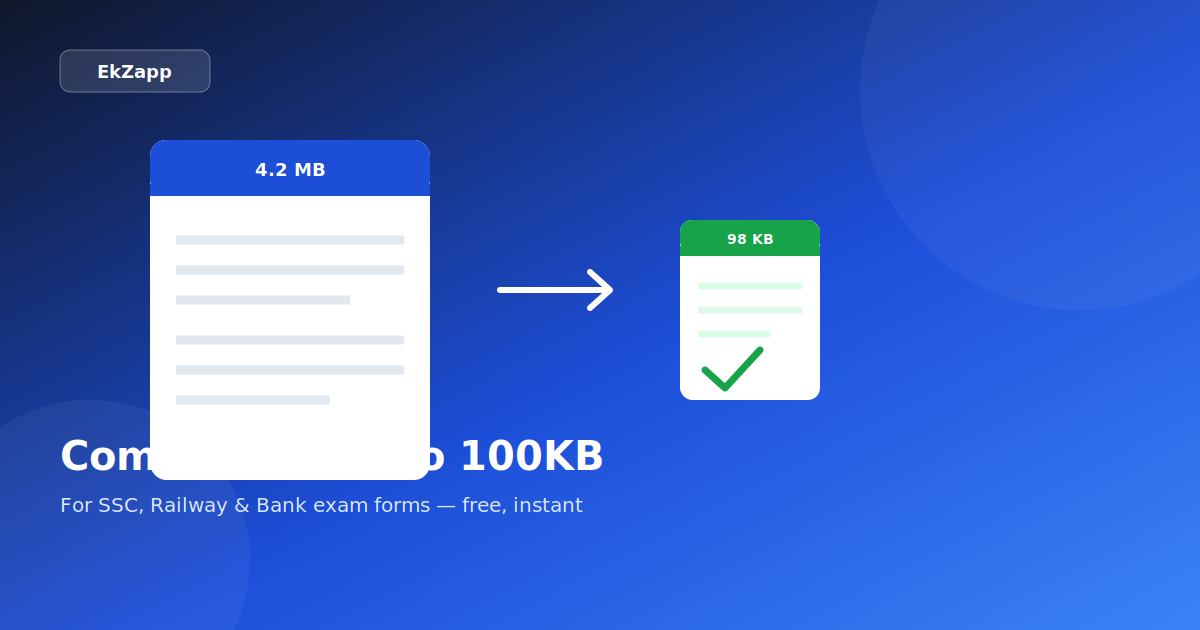
Most government exam portals in India were built years ago on servers with strict upload limits, often 100KB to 1MB per file. During peak form-submission periods with lakhs of applicants uploading documents simultaneously, these limits keep the servers from crashing under the combined load. The result: your scanned certificate, mark sheet, or signed document — which might easily be 2-5 MB straight out of a phone camera — needs to be squeezed down dramatically before the form will accept it.
This isn't a quirk of any one board — nearly every major recruitment portal in India (SSC, Railway RRB, IBPS, UPSC, and most state PSCs) enforces some version of this limit, which is why compressing PDFs before a form submission has become a routine step for anyone applying to competitive exams.
Step-by-step: compress your PDF for free
- Go to the Compress PDF tool on EkZapp.
- Upload your PDF file — drag and drop, or click to browse.
- The tool automatically optimizes the file, removing redundant data and compressing embedded images.
- Download the compressed PDF and check the new file size before uploading it to your exam portal.
Common target sizes for popular exam forms
| Exam / Form Type | Typical Size Limit |
|---|---|
| SSC CGL / CHSL | Under 100KB (photo), 300KB (signature) |
| Railway RRB | Under 50KB–100KB per document |
| Bank PO/Clerk (IBPS) | Under 20KB–50KB (photo/signature) |
| UPSC | Under 300KB per document |
Always check the specific instructions on your exam's application page — limits vary by department and can change each cycle, so a size that worked for last year's form isn't guaranteed to work this year. When in doubt, aim slightly under the stated maximum rather than exactly at it, since some portals interpret the limit strictly.
Tips to get the smallest file size without losing quality
- Scan documents in black-and-white or grayscale mode instead of color when the content allows it — color scans carry far more data per page than grayscale ones.
- Avoid scanning at very high DPI (300 DPI is usually more than enough for text documents; anything higher mostly adds file size without adding legibility).
- If your PDF is mostly one scanned image, consider converting it to JPG first and using EkZapp's Image Size Reducer to hit an exact KB target, then convert back to PDF.
- Remove any blank or duplicate pages before compressing — every extra page adds to the total, even a mostly-empty one.
- Flatten any unnecessary form fields or annotations layered on the PDF, since these add overhead separate from the visible page content and don't always get stripped by a general compression pass.
- If multiple documents need to go into one submission, merge them first and then compress the combined file once, rather than compressing each separately — this avoids compounding quality loss across repeated passes.
What to do if one pass isn't enough
General PDF compression works well for text-based documents and moderately-sized scans, but a very large scanned image sometimes doesn't compress enough in a single automated pass to hit an aggressive target like 50KB. When that happens, a more direct route usually works better:
- Convert the PDF's page to a JPG image (EkZapp's PDF to JPG tool handles this).
- Use the Image Size Reducer to shrink that image to the exact KB target the form requires — this tool searches for the highest quality that still fits under your limit.
- Convert the resized image back into a PDF using the Image to PDF tool.
This gives more direct control than relying on a general-purpose PDF compressor alone, since you're targeting an exact KB number on the image itself rather than hoping the PDF compression lands under a threshold.
Scanned PDFs vs. text-based PDFs
Not all PDFs compress the same way, and understanding why helps set realistic expectations:
Is it safe to compress PDFs with personal documents online?
Yes. EkZapp processes files temporarily and auto-deletes them shortly after. No account or signup is required, and files aren't shared with third parties — which matters given how many exam-form PDFs contain personal identification documents like mark sheets, ID proofs, and category certificates. Since the tool runs entirely in the browser for the upload step and processes the file server-side only briefly, there's no persistent storage tying your documents to an account or login history.
Frequently asked questions
How do I compress a PDF to exactly 100KB?
Upload your PDF to EkZapp's Compress PDF tool. It automatically reduces file size while preserving readability. Most exam-form PDFs compress to under 100KB in a single pass — check the output size before submitting.
Will compressing my PDF make the text unreadable?
No. Compression mainly removes redundant data and optimizes embedded images, so text stays sharp and selectable. Only heavily image-based PDFs may show minor quality loss.
Why do exam forms require such small PDF sizes?
Government exam portals often run on older systems with strict server limits — usually 100KB to 1MB — to handle high traffic during form submission periods without crashing.
Is it safe to compress PDFs with personal documents online?
Yes. EkZapp processes files temporarily and auto-deletes them shortly after. No account or signup is required, and files aren't shared with third parties.
What's the difference between compressing a scanned PDF and a text-based PDF?
A text-based PDF compresses very efficiently since the text itself takes almost no space — most of the reduction comes from optimizing any embedded images. A scanned PDF is essentially one large image per page, so it has less room to shrink without a visible quality trade-off.
What should I do if my PDF is still too large after compressing once?
If a single pass doesn't reach the target, convert the scanned pages to JPG first, reduce those images to a specific KB target individually, then rebuild the PDF from the smaller images — this gives more direct control than relying on general PDF compression alone.
Does compressing a PDF remove any pages or content?
No. Compression only reduces file size through data optimization; it doesn't delete pages, text, or images. All original content remains, just stored more efficiently.
Quick recap
Exam portals set tight size limits — often 20KB to 300KB — because they're built to handle lakhs of simultaneous applicants without crashing. A single pass through the Compress PDF tool handles most text-based documents easily through lossless optimization alone; for a large scanned photo or signature that won't shrink enough on its own, converting it to JPG and using the Image Size Reducer for an exact KB target usually finishes the job. Either way, always check the final file size against your specific exam's notification before submitting, since limits vary by board and can change between sessions — and run through the pre-upload checklist once before hitting submit, since a rejected form often costs more time than the compression step itself.