- Who needs this most
- Before you compress: getting a good source photo
- The quality-vs-size trade-off, explained
- Troubleshooting a stubborn upload rejection
- Why do forms ask for a specific KB size?
- Common photo size requirements
- Step-by-step: reduce your image to an exact KB size
- How the tool keeps quality as high as possible
- KB size vs. pixel dimensions
- Does reducing size lower the quality?
- Frequently asked questions
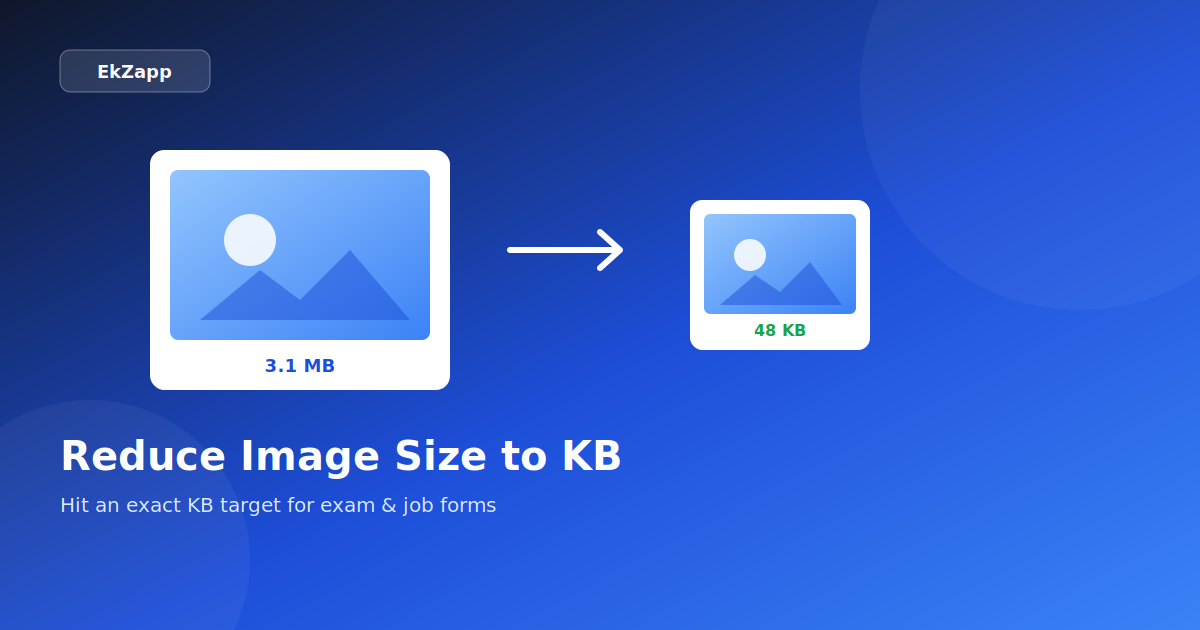
If you have ever filled out an online exam form or a government job application, you know the frustration: the portal asks for a photo "between 20 KB and 50 KB," but your phone camera photo is 3 MB. Upload fails, and you are stuck. The good news is that you do not need Photoshop or any app to fix this — you can reduce any JPG or PNG photo to an exact file size in KB right from your browser, on mobile or desktop, in a few seconds. Here is exactly how, along with the details that trip people up most often — the difference between a KB limit and a pixel-dimension limit, how to get a better source photo before compressing, and what to check when an upload still gets rejected.
Who needs this most
| Who | Typical situation |
|---|---|
| Exam applicants | Uploading a photo and signature under strict KB limits set by SSC, IBPS, or UPSC |
| Job seekers | Adding a profile photo to an application portal with its own size cap |
| Passport applicants | Meeting a government portal's specific KB and pixel combination |
| Parents filling school admission forms | Resizing a child's photo to match a school portal's upload rules |
Before you compress: getting a good source photo
A slightly better starting photo makes a bigger difference than any compression setting. A few habits help:
- Take the photo in good, even lighting against a plain background — this reduces the amount of visual detail the compression has to work around.
- Avoid taking the photo at your camera's maximum resolution setting if your phone allows choosing a lower one; a smaller starting file compresses more predictably.
- Crop out unnecessary background before uploading, since a tightly cropped face-focused photo has less visual information to compress than a wide shot with excess space around the subject.
The quality-vs-size trade-off, explained
Every compression tool is balancing two things that pull against each other: how good the image looks, and how few bytes it takes up. A smart compressor doesn't apply one fixed setting — it searches for the highest quality level that still lands under your target size, which is why the same tool can produce a barely-noticeable 100 KB result but a visibly softer 15 KB one from the same original photo.
Two variables drive this trade-off:
- JPEG quality level — lower quality settings discard more visual detail per pixel, which shrinks the file but can introduce visible blockiness in fine detail like hair or text.
- Resolution — reducing the actual pixel dimensions removes data more aggressively than quality reduction alone; this is the fallback step used only when quality reduction by itself can't reach a very small target.
Understanding this helps explain why two different phones' 3 MB photos can compress to noticeably different-looking 50 KB results — the original photo's own detail level (lighting, focus, background complexity) affects how much has to be discarded to hit the same target size.
Troubleshooting a stubborn upload rejection
If a photo still gets rejected after compressing to the stated KB range, the cause is usually one of a small number of things unrelated to file size itself:
- Pixel dimensions don't match — being under the KB limit doesn't help if the width and height aren't what the portal expects; check both requirements separately.
- Wrong file format — some portals specifically want JPG and reject PNG or other formats even at the correct size.
- Background isn't plain — many government forms require a plain white or light background; a compressed photo with a busy background can still fail the portal's own image validation, separate from the size check.
- Browser cache showing a stale preview — occasionally a portal's preview thumbnail doesn't refresh after a re-upload; if the upload confirmation shows success, trust that over an outdated-looking preview.
Separating these possibilities out — file size, pixel dimensions, format, and content requirements — makes it much faster to isolate what's actually causing a stubborn rejection instead of re-compressing the same photo repeatedly with no change in outcome.
Why do forms ask for a specific KB size?
Websites limit photo file size to save storage and to keep uploads fast for everyone. Exam boards and job portals in particular receive lakhs of applications, so they set strict limits like 50 KB for the photo and 20 KB for the signature. If your file is even slightly larger, the upload is rejected — and unlike a general "keep it small" suggestion, most portals validate the byte size directly, so being under a soft mental estimate of "small" isn't the same as passing the actual check.
Common photo size requirements
Different forms ask for different limits. Here are the most common ones you will run into:
| Use case | Typical size |
|---|---|
| Government / exam form photo | 20 KB – 50 KB |
| Signature upload | 10 KB – 20 KB |
| Job application photo | 50 KB – 200 KB |
| Passport / visa photo | 100 KB – 300 KB |
These ranges aren't arbitrary — a signature scan is naturally a much simpler image than a full photograph (mostly white space with dark strokes), so it compresses far more before losing legibility, which is why signature limits sit noticeably lower than photo limits across nearly every portal that requests both.
Step-by-step: reduce your image to an exact KB size
- Open the tool. Go to the Image Size Reducer page.
- Upload your photo. Click the upload box or drag your JPG or PNG file into it.
- Enter your target size. Type the exact number of KB the form asks for — for example, 50 or 100.
- Click "Reduce Size". The tool automatically adjusts the image quality to land as close to your target as possible.
- Check the preview. You will see how the photo looks and the final KB size before downloading — no surprises.
- Download. Save the compressed image and upload it to your form.
How the tool keeps quality as high as possible
Instead of blindly squashing your photo, the tool searches for the highest possible image quality that still fits under your target size. Only when a very small size is requested (like 10 KB for a large photo) does it gently reduce the resolution so the file can fit. That means you get the smallest acceptable file without making the photo look worse than it has to.
KB size vs. pixel dimensions
These are two separate checks that forms often apply independently, and confusing one for the other is a common source of rejected uploads:
A photo can pass one check and fail the other, so it's worth confirming both against your specific form's notification rather than assuming a correctly-sized-in-KB file is automatically also the right dimensions.
Does reducing size lower the quality?
A little compression is usually invisible to the eye. For a passport-style face photo going from 2 MB down to 50 KB, the difference is barely noticeable on screen. Extreme targets (very tiny KB values on a very large photo) will show more compression, which is normal — that is simply the trade-off any tool has to make to hit the size.
Your image is processed securely and is not stored permanently. Files are removed automatically after processing, so your personal photo does not sit on any server, and there's no account history linking the upload back to you afterward.
Frequently asked questions
Can I reduce a PNG to 50 KB?
Yes. PNG, JPG and WEBP all work. For strong compression the image is saved as a JPG, and any transparent background becomes white.
Will I get exactly 50 KB?
The tool gets as close as possible under your target, so you will get something like 48–50 KB rather than going over the limit. That is exactly what upload forms need.
Does it work on mobile?
Yes, it runs fully in your phone's browser — no app to install. Perfect when you are filling a form on your phone.
Is it really free?
Completely free. No signup, no watermark, no limit on how many photos you compress.
Why does my photo need an exact KB size instead of just "small"?
Government and exam portals validate the uploaded file's byte size against a hard minimum and maximum, so a photo that's merely "small" can still be rejected if it falls outside the specific range stated in the notification.
What's the difference between reducing image size in KB and resizing dimensions in pixels?
KB size refers to the file's storage weight, while pixel dimensions refer to its width and height. A photo can be the correct pixel dimensions and still fail a KB limit, or vice versa — most forms check both independently.
Why does a very small KB target sometimes blur the photo?
When a target is small relative to the original photo's detail, quality reduction alone may not be enough, so the tool also reduces resolution slightly to hit the size — this trade-off is normal and expected for very aggressive targets like 10 KB on a large original.
Quick recap
Exam and job portals check KB size and pixel dimensions as two separate rules, so both need to match your form's notification independently. The Image Size Reducer targets an exact KB number automatically, searching for the highest quality that still fits under your limit rather than blindly over-compressing. A good source photo — plain background, even lighting, tight crop — compresses more predictably than a busy, poorly lit one, so a little care before uploading pays off in the final result. Keep your original photo before compressing so you can re-target a different size later without starting from an already-degraded file, and if a rejection persists after the size looks right, work through pixel dimensions, format, and background requirements separately rather than re-compressing the same file over and over with no visible change.